


The present article, is part of a series of articles related to the DE-25 FPGA Dev Kit,
that will illustrate how to install a Linux Image in a MicroSD Card to Boot the Hard Processor System (HPS) that is inside the Intel Agilex 5 integrated circuit along with the FPGA as illustrated in our previous article Part 1 and now in the following classical Altera SoC FPGA generic diagram,

The Hard Processor System (HPS) Portion on the left for the DE-25 FPGA Dev Kit has an ARM Cortex Processor with 2× A55 and 2× A76 cores. The previous article Part 2 provided a simple demo for the FPGA fabric portion on the right without using the internal HPS on the left. Now this article will address the left side (HPS Fabric) and install Linux in an SD card so that the HPS can boot up from it.
The Micro SD Card should have at least 4GB of capacity. At the moment of this writing the Linux Console (Ubuntu + kernel 6.12.11-lts; revC Board) which can be obtained here (Rev C works with the Rev D board.) will be used in this series of articles.
Proceed to download and install Rufus for the Windows Operating System. After downloading the Linux image, use Rufus to create the bootable SD card as shown below,

Then insert the Micro SD Card into the SD card slot in the DE-25 FPGA Dev Kit as shown below,

Place the MSEL switches in the following manner,

The driver for the UART interface is installed automatically by simply checking the ‘Install UART FTDI driver’ option during the Quartus Pro setup. If that is not the case, then proceed to install it manually. The device driver from the source files located in the Quartus installation directory. The typical path is as follows:
<Quartus 25.1 pro install path>\25.1\quartus\drivers\uart-ftdi\
Connect the power supply, the USB cable to the computer and power up the board by pressing the red button on the DE-25 FPGA Dev Kit.
Configure a PuTTY terminal window can be downloaded from this link. Open the Device Manager and find the Ports (COM & LPT) as shown below,

Now open PuTTy terminal window and setup and save a serial session (named here as de-25) (that can be loaded later as needed) as shown below with the corresponding port (In this case COM8),

After the Linux booting process is completed at the PuTTY terminal the login should show up,

Use the following login details,
login: terasic
Password: 123
Then the following welcome should be displayed,

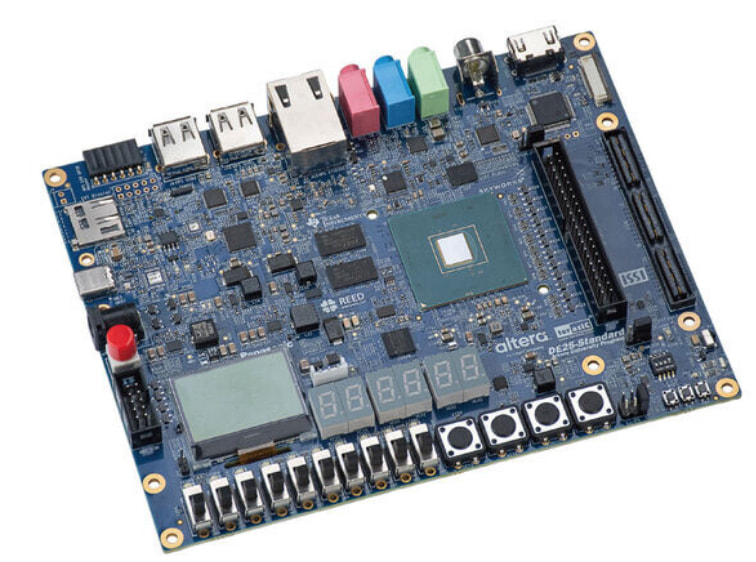
The MicroSD card Linux installation process and booting sequence for the HPS portion of the DE-25 FPGA Dev Kit has been completed. The DE-25 FPGA Dev Kit is a powerful platform featuring an HPS/FPGA Agilex 5 (available as D-Series and E-Series depending on the case) capable of implementing Tensor AI slices,

that go beyond what traditional/classical old school DSP slices implemented in the past,

and it is available at DigiKey.
Have a wonderful day!
This article is available in spanish here.
Este artículo está disponible es español aquí.